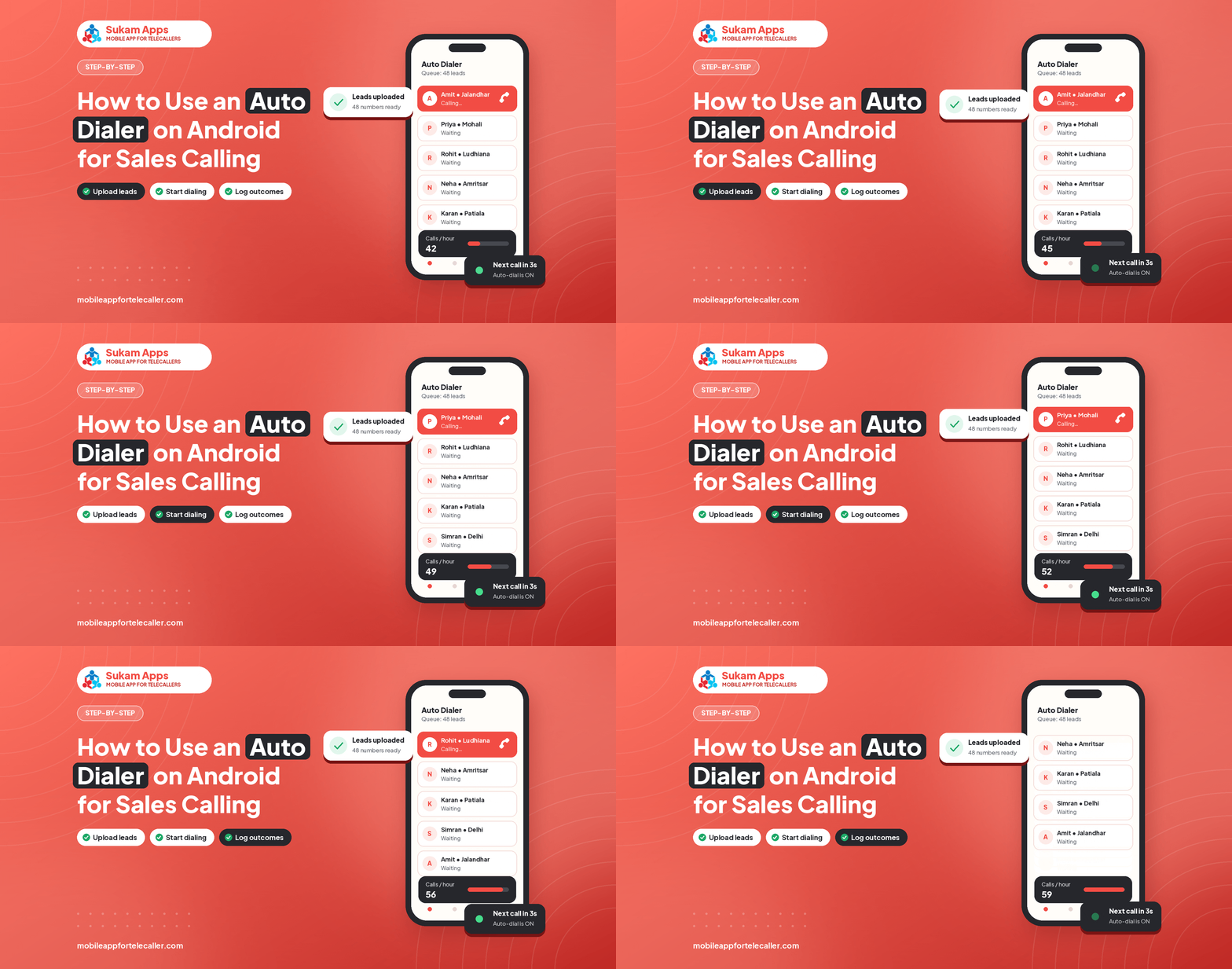
An auto dialer saves the time a telecaller spends typing numbers and looking at the next row. Used well, it raises calls per day without hurting call quality. Here is how to set it up properly.
Step 1: Clean the list
- Remove duplicates and obviously wrong numbers.
- Add a column for source and city.
- Split the list so each telecaller gets leads in their language or region.
Step 2: Upload and assign
Import the Excel or CSV file into your CRM, map the columns and assign leads to telecallers. Fresh leads and follow-ups should be separate queues.
Step 3: Choose the dialing style
A progressive dialer rings one number at a time after the telecaller saves the last status. It sounds natural to customers. Predictive dialers ring many numbers at once and often connect customers to silence, which hurts your brand.
Step 4: Set a short gap
A gap of a few seconds between calls gives the telecaller time to read the lead name and previous remarks. Use pause for breaks.
Step 5: Update status after every call
- Connected and interested: set next follow-up date.
- Not reachable: retry later in the day.
- Not interested: close with a reason.
- Wrong number: mark and remove.
Step 6: Send WhatsApp after the call
Send the brochure or price details while the customer is still thinking about you.
Step 7: Review the session report
Check calls made, connected, talk-time and outcomes per telecaller at the end of the day. Coach on the numbers and on a couple of recordings.
Common mistakes
- Dialing bought lists with no consent; use leads who enquired.
- Skipping status updates to save time.
- Calling at hours when nobody picks up.
See this running on your own lead list
Sukam Tele CRM runs on your telecallers’ own SIMs: auto dialer, call recording, follow-ups and a live owner dashboard. 7-day free trial, setup done by our team.
Start 7-Day Free TrialWhatsApp UsRelated: Auto dialer app · Best time to call leads
New to dialers? Read how an auto dialer call works step by step, and how an auto redial app handles busy and unanswered numbers.